
How to Connect Claude to dfin.pro MCP

Connect Claude to dfin.pro to research public companies using filings, earnings transcripts, financial statements, prices, stock screens, and fund analytics. The recommended setup installs the official dfin.pro plugin and signs you in through your browser, so there is no API key to copy. These steps work in Claude on the web and in the desktop app.
The plugin does two things. It adds the dfin.pro connector, which lets Claude fetch data, and it installs research skills, which are ready-made workflows that help Claude use that data well. Signing in uses OAuth, which means you approve access on a dfin.pro page in your browser.
Using Claude Code in the terminal? Follow the Claude Code guide instead.
1.0 Before You Start
You will need:
- A dfin.pro account. If you signed up with an email address rather than Google, verify your email first.
- A Claude plan that supports plugins: Pro, Max, Team, or Enterprise. On the Free plan you can still connect without the plugin; see Troubleshooting. Claude explains plugin availability and custom connector limits in its help center.
- Permission from your organization, on Team or Enterprise plans. If plugins or connectors are missing, ask your Claude owner or admin.
- A signed-in dfin.pro session in the same browser you use for Claude. You will approve the connection there.
2.0 Connect using the plugin and OAuth
Installing the dfin.pro plugin adds the dfin.pro connector, which lets Claude fetch data, plus research skills that help Claude use that data well. This is the recommended way to connect.
Claude's menus change from time to time. If a button doesn't match the name used below, look for the closest equivalent. For example, newer versions may say Discover instead of Browse plugins, or Add instead of +.
Add the plugin marketplace
Claude installs plugins from a marketplace, which is simply a source of plugins. You'll add the dfin.pro marketplace first.
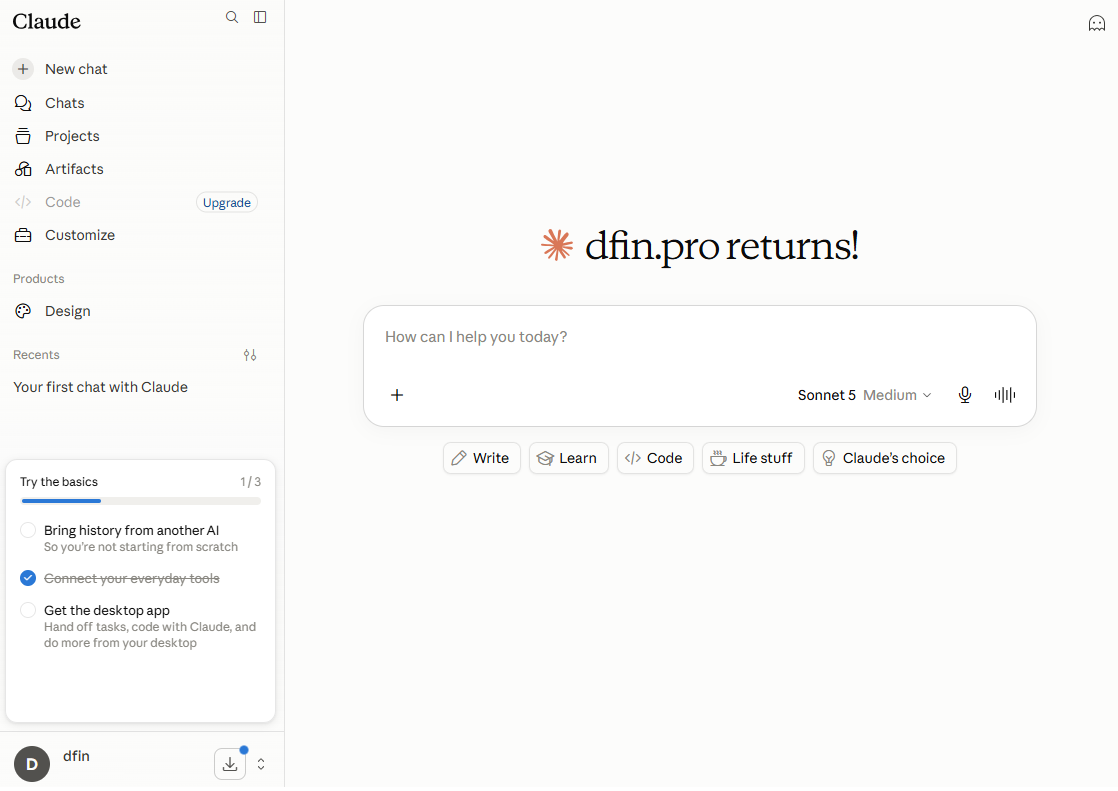
On the Claude website or desktop app, click Customize in the left menu.
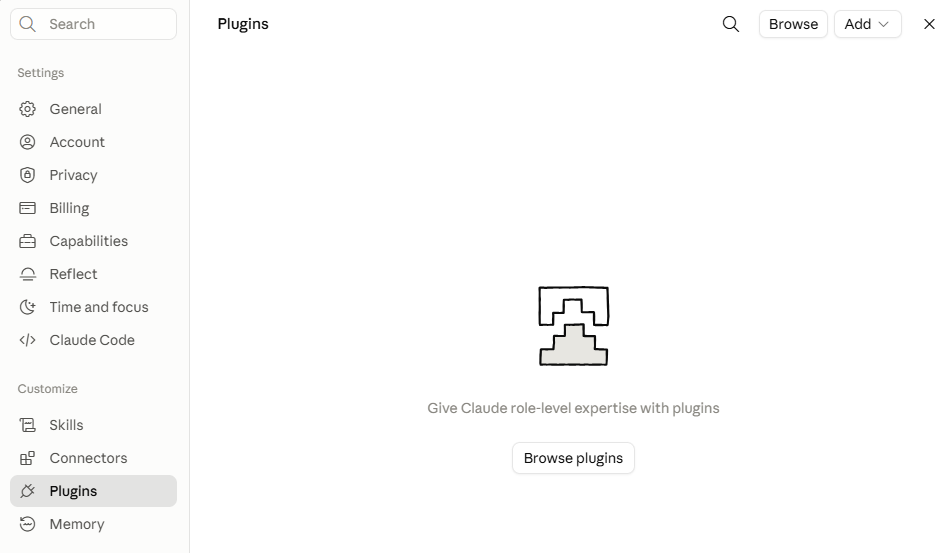
In the same menu, open Plugins and click Browse plugins.
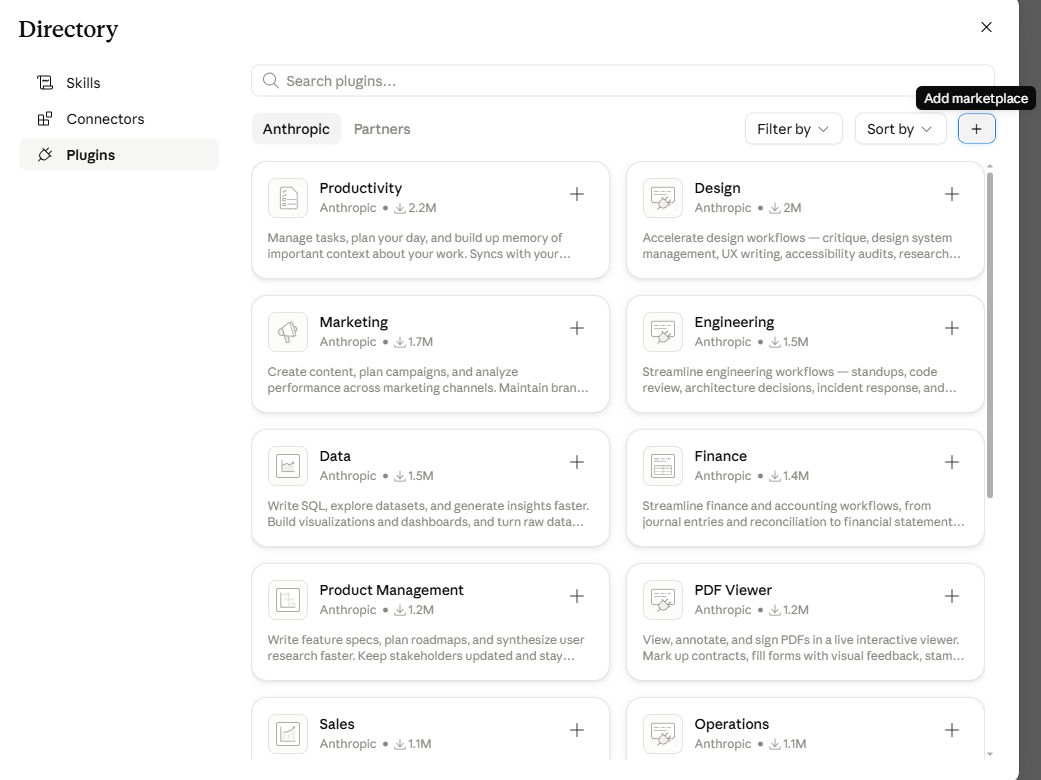
Click the + (or Add) icon at the top right. This opens Add marketplace.
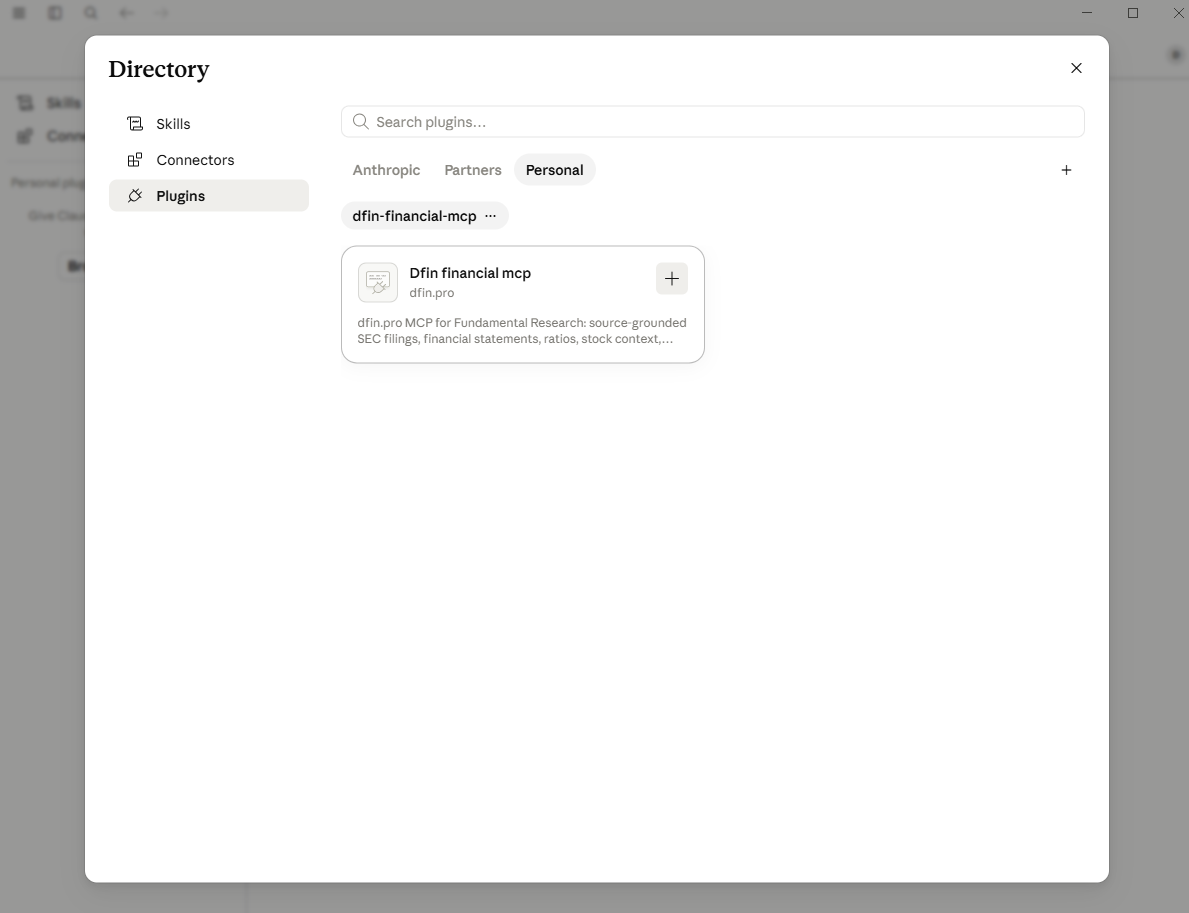
Paste the name below into the URL field, choose Use "dfin-pro/dfin-financial-mcp" from the dropdown, and click Sync.
dfin-pro/dfin-financial-mcp

The dfin-financial-mcp plugin should now appear in the directory. Click the + (or Add) button on its card to add it, then open the installed plugin to reach its settings.
Configure the connector
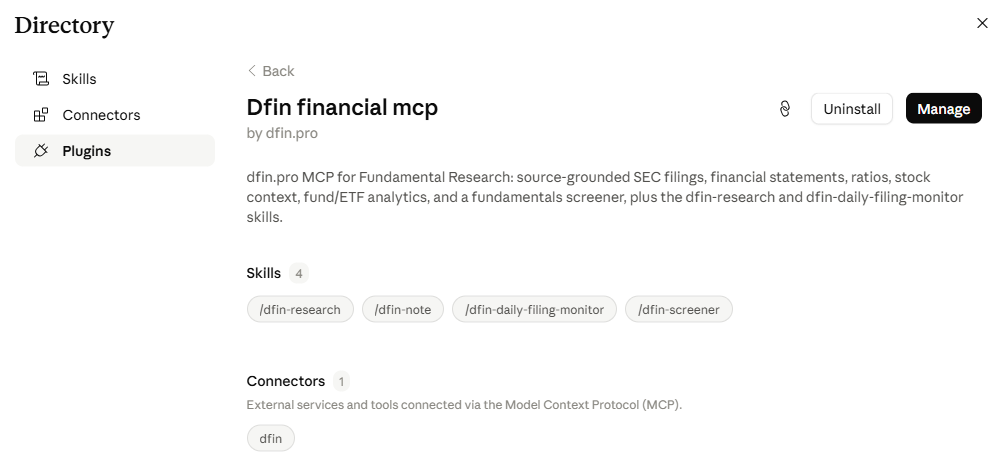
The plugin's details page lists its research skills and its connector. Click Manage at the top right, or open the plugin's Connectors tab if your version shows it directly.
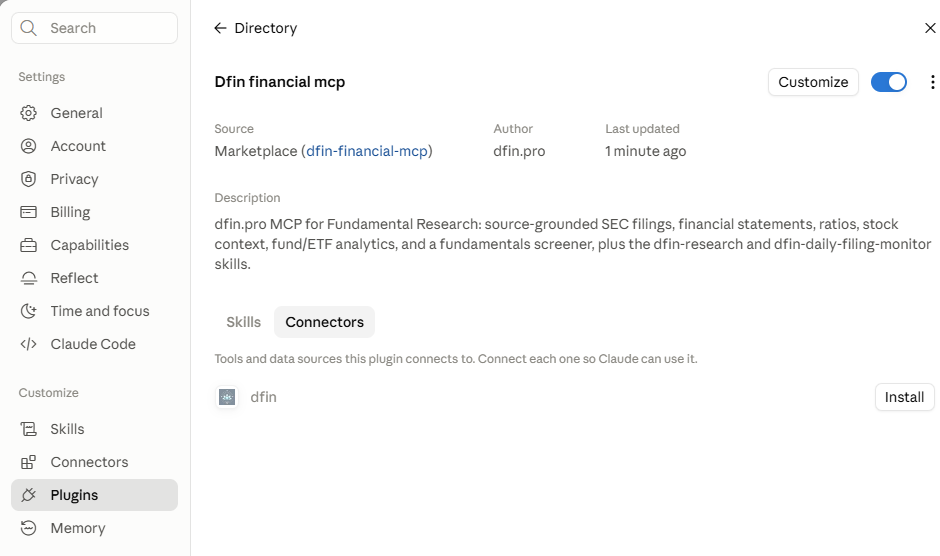
Then click Connectors. The screenshot shows the connector as dfin; yours may be labeled slightly differently. If the connector hasn't been added yet, click Install (or Add, depending on your version). If you already have a dfin connector, there's no need to add another one, so go straight to Connect below.
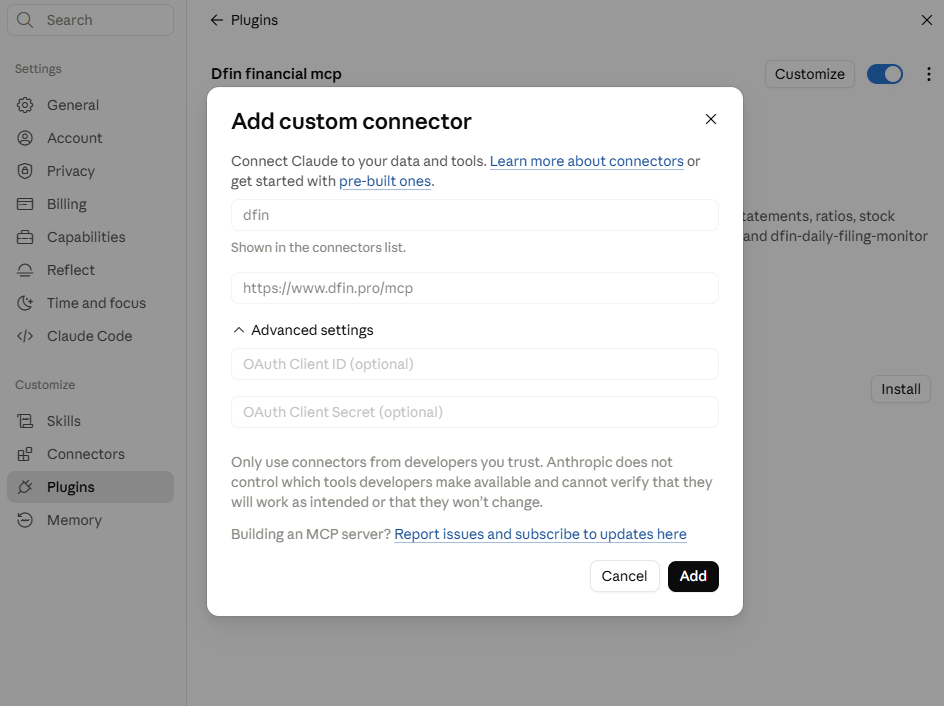
The form is already filled in for you. Check that the remote MCP server URL is https://www.dfin.pro/mcp, then click Add.
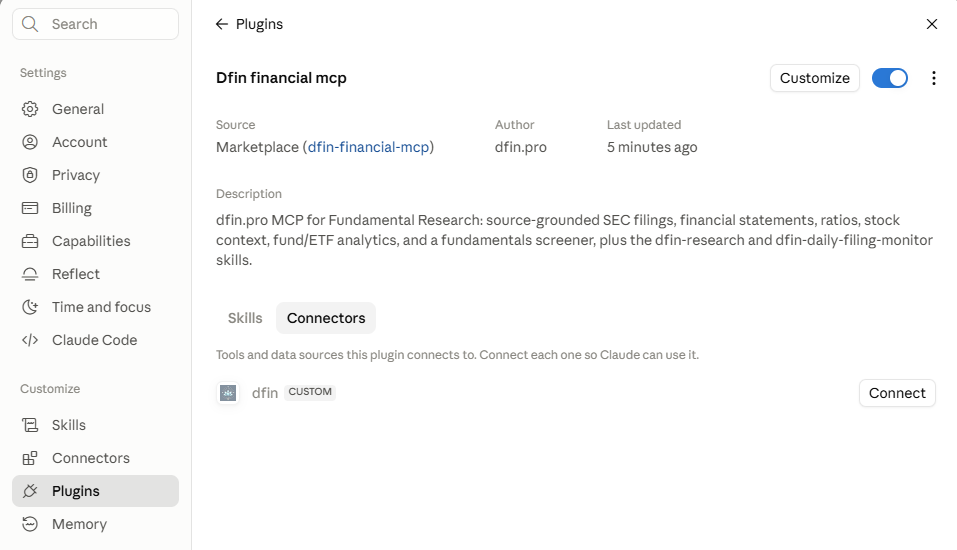
Claude returns you to the plugin's Connectors tab. Make sure you are signed in to dfin.pro in this browser, then click Connect next to dfin.
Claude opens a dfin.pro authorization page. Review the access it asks for, then click Connect on that page to approve.
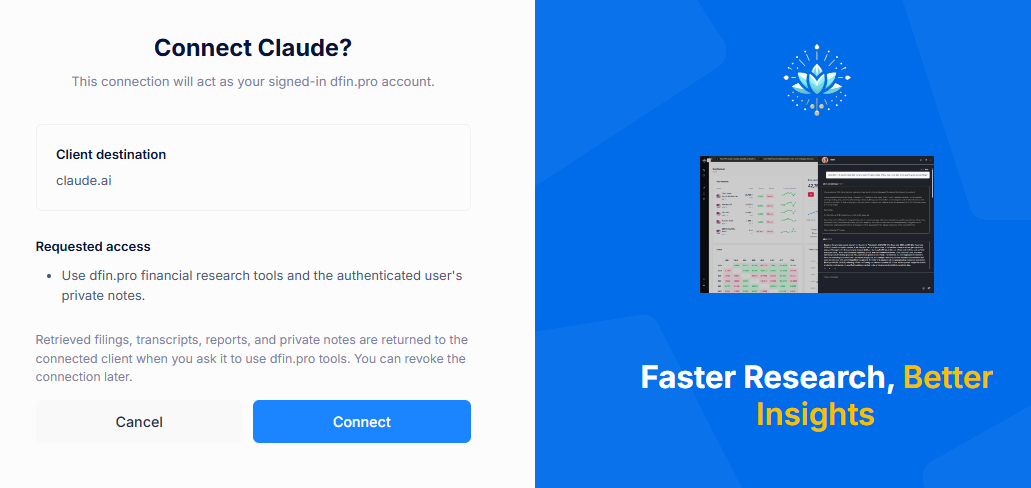
You'll return to Claude with the dfin connector showing as connected. If the tools or skills don't appear, open a new conversation.
You sign in on dfin.pro's own page, so you never need to type a password or key into Claude. Once you are connected, skip ahead to Try a research question.
3.0 Connect using the API key
Use this section only if you cannot sign in with OAuth. If OAuth worked, skip to Optional permissions.
An API key is a private code that identifies your account. Create one on your dfin.pro Account page. Anyone who has your key can use your account, so keep it to yourself.
Open Customize → Connectors and click Add custom connector. If you already have a dfin connector there, remove it first so the two don't conflict.
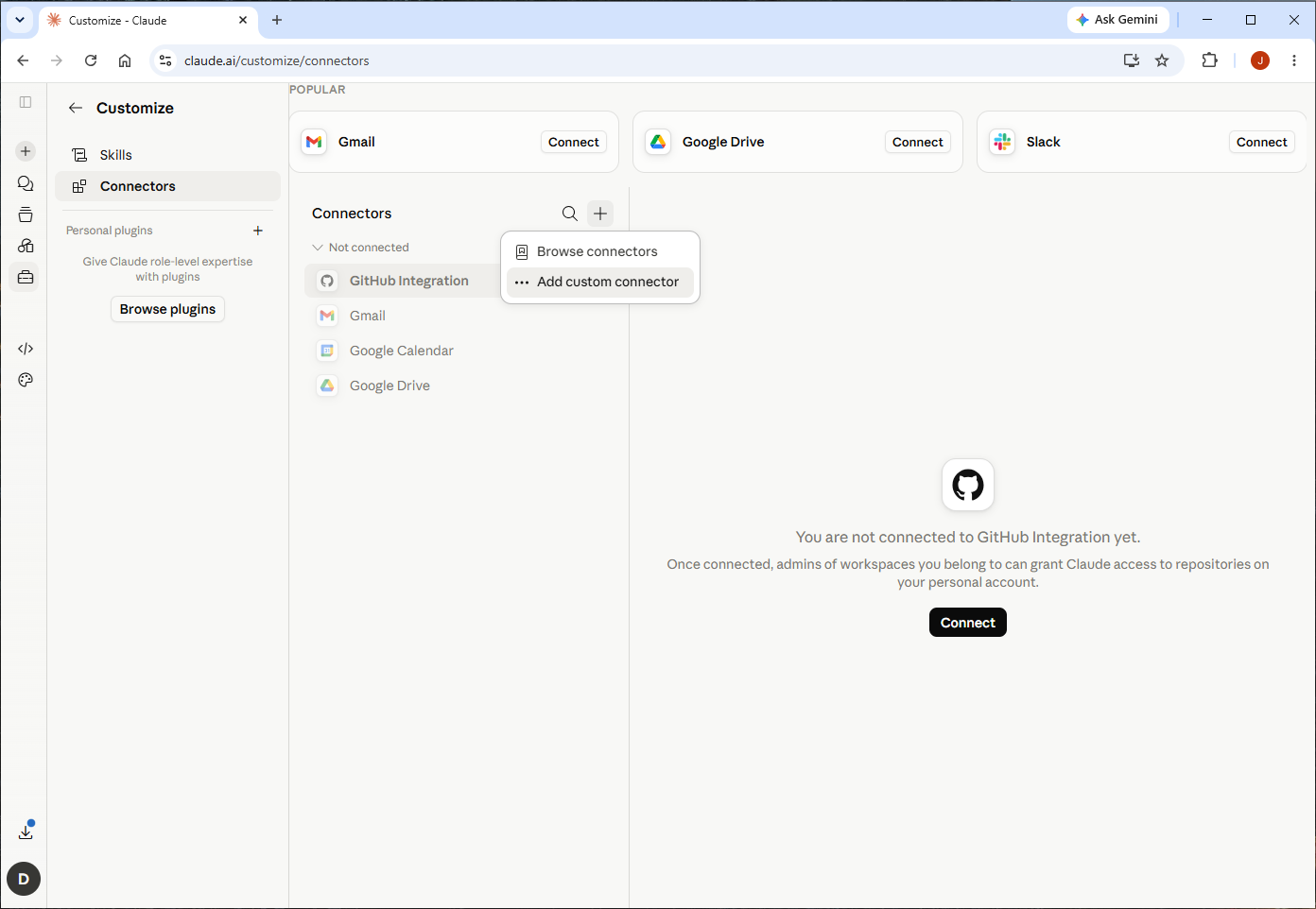
Fill in only two fields:
- Name:
dfin - Remote MCP server URL:
https://www.dfin.pro/mcp/<your-api-key>
Leave the fields under OAuth blank and click Add.
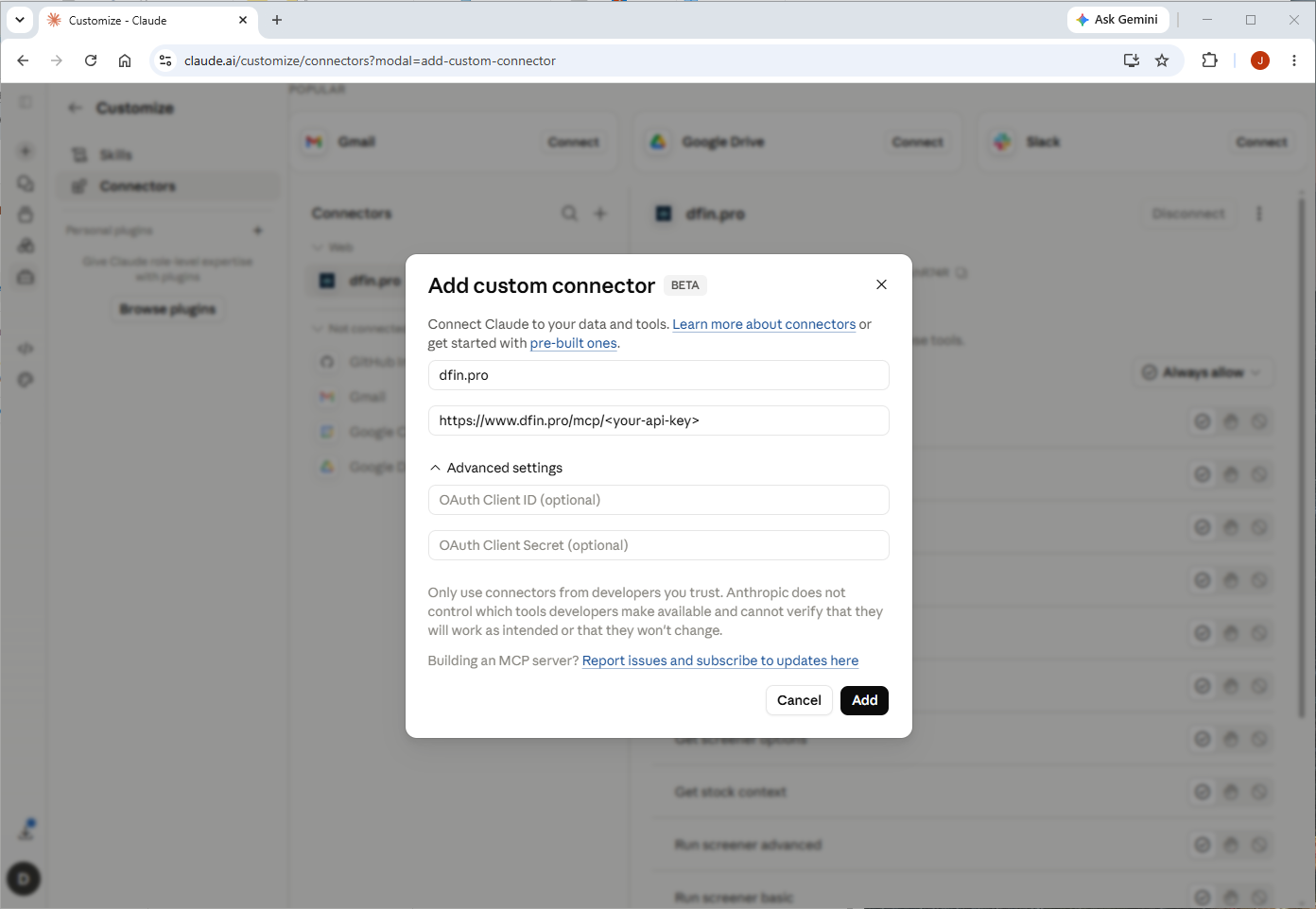
Replace <your-api-key> in the URL with your own key. Because the key is part of the URL, treat the whole URL like a password: it can end up in your browser history, screenshots, and support requests, so don't share it or paste it into a chat or email. If it is ever exposed, regenerate the key on your Account page and update the connector.
4.0 Optional permissions
Both settings below are optional. You do not need either one to connect.
Approve tools
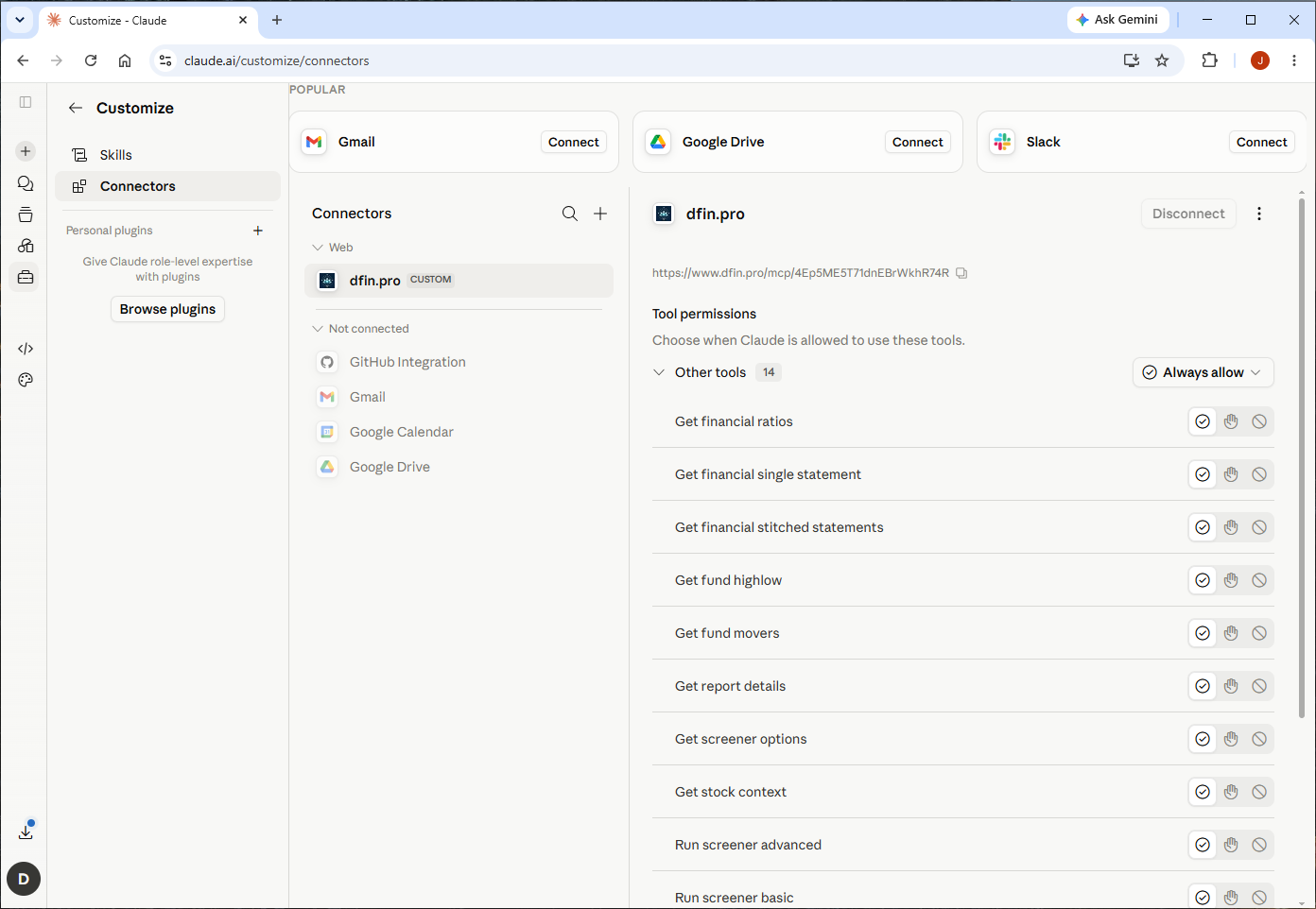
The first time Claude uses a dfin.pro tool, it asks for your permission. You can approve each request as it comes up, or ask for fewer prompts: on the Connectors screen, set Read-only tools to Always allow. Read-only tools only look up data.
Write/Delete tools let Claude create, edit, and archive your dfin.pro notes. You only need to allow these if you want Claude to manage notes for you.
Let Claude open dfin.pro links
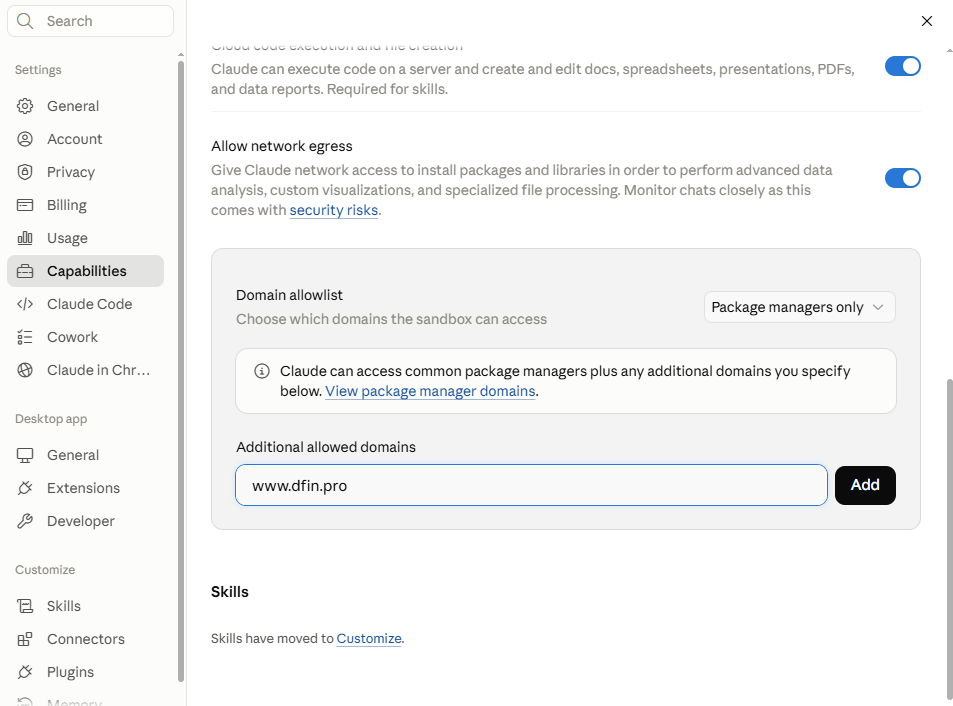
Some dfin.pro results come back as a link to the full data instead of the data itself. If Claude cannot open those links, add dfin.pro to its allowed domains. This setting is not available in every version of Claude.
- Open Settings, then select Capabilities.
- Scroll down to Additional allowed domains.
- Enter
www.dfin.proand click Add.
This also lets Claude read large results without loading all of the data into your conversation.
5.0 Try a research question
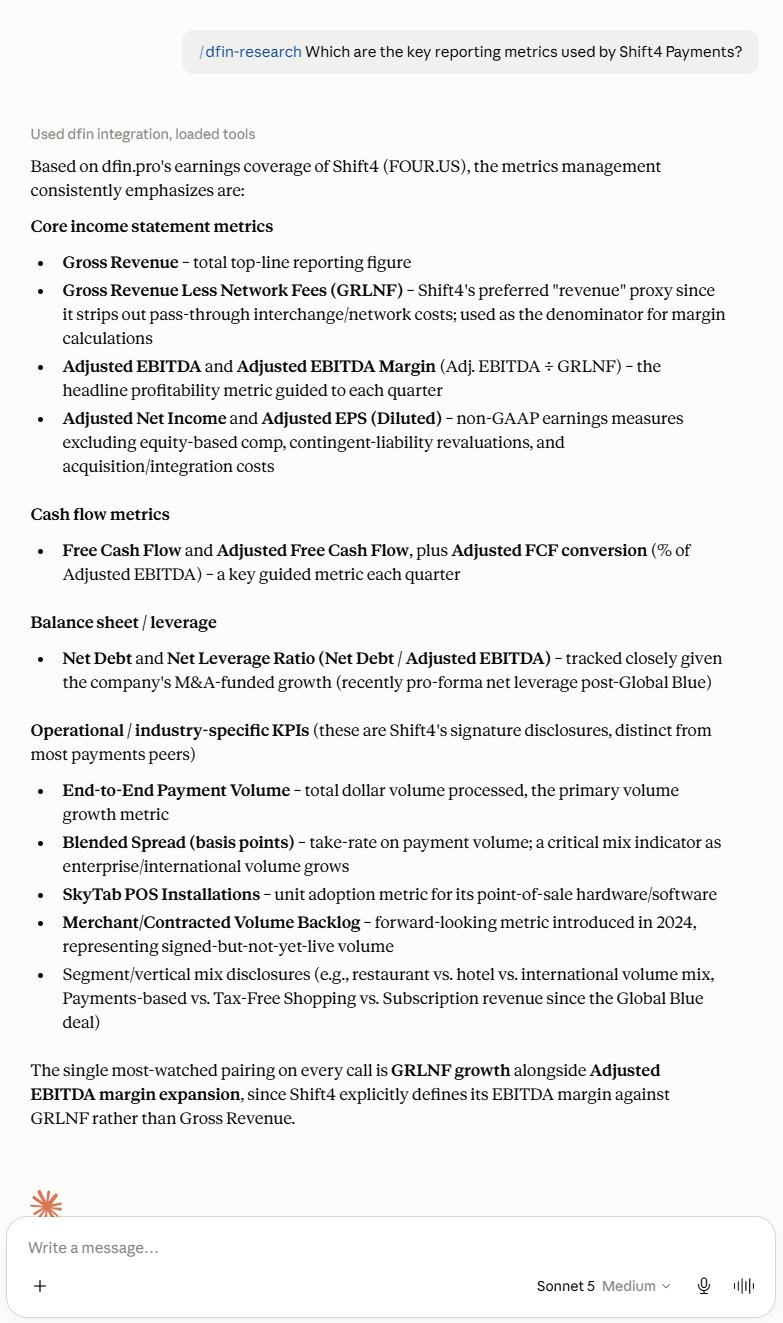
Start a new chat and try a question that needs financial data:
/dfin-research Which are the key reporting metrics used by Shift4 Payments?
Claude should show that it is using dfin.pro tools, then answer with figures and their sources. If it answers without using dfin.pro, check that the plugin and connector are turned on for the chat, or see Troubleshooting.
6.0 Using skills
Skills are ready-made workflows that show Claude how to approach a task: what evidence to look for and how to present the result. The plugin installs the dfin.pro skills for you.
To use the research skill, start your message with /dfin-research, as in the example above. The plugin also includes skills for stock screens, saving notes, and monitoring recent filings.
Skills are plain text files, usually in Markdown, so you can edit them or write your own. A good approach is to ask Claude to make the first edits, then fine-tune them by hand. Save your version under a different name so plugin updates don't overwrite your changes.
7.0 Updating the plugin
We recommend updating the plugin from time to time to get new skills and improvements to existing ones. It takes three short steps.
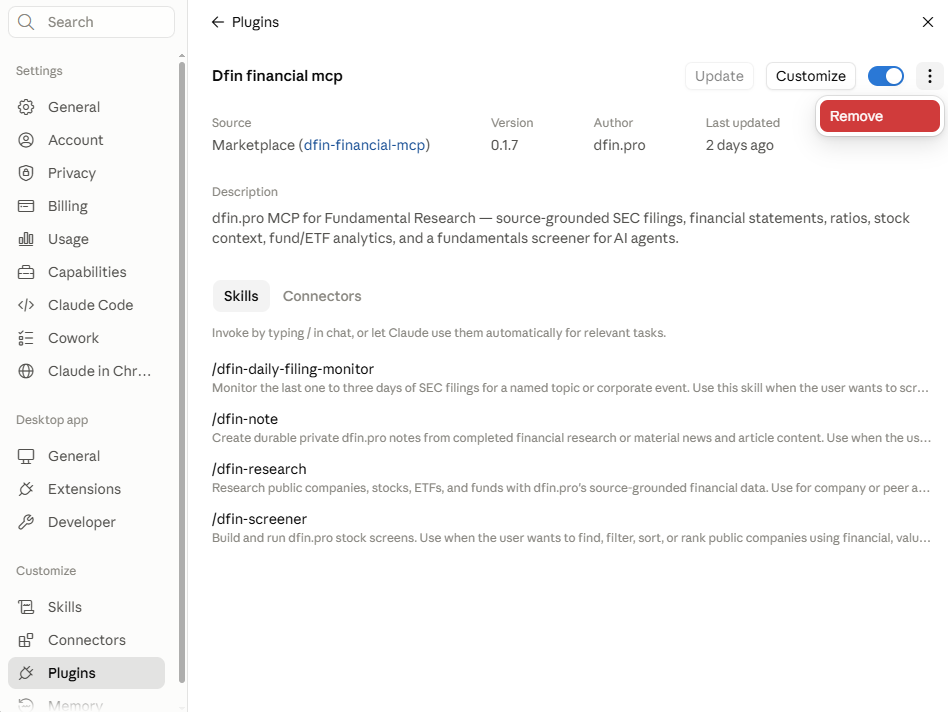
Step 1: Remove the current plugin. Go to Settings > Plugins > DFin financial MCP, select Remove from the top-right menu, then select Remove again to confirm.
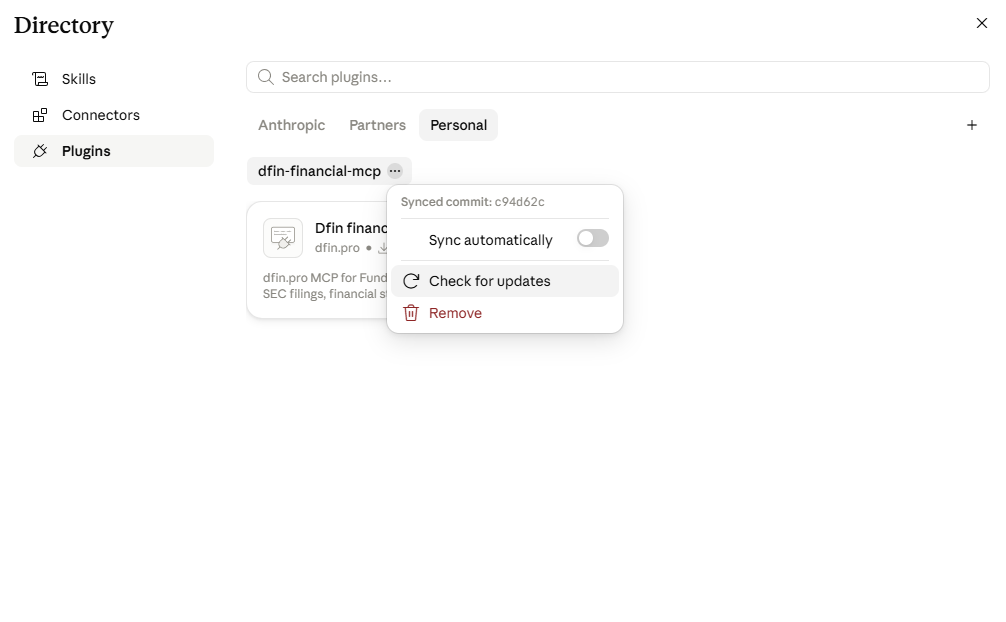
Step 2: Check for updates. Go back to Browse plugins, open the Personal tab, and select Check for updates.
Step 3: Reinstall. When the update finishes, select the + icon and choose Install.
8.0 Troubleshooting
I can't find the plugin or connector options
- Plugins need a paid plan. Plugins are available on Pro, Max, Team, and Enterprise. If you are on the Free plan, you can still connect without the plugin. Go to Customize → Connectors, click Add custom connector, enter
dfinas the name andhttps://www.dfin.pro/mcpas the URL, leave the OAuth fields blank, and click Add. Then click Connect and approve the connection on dfin.pro. Free plans allow one custom connector, so remove another one first if you have already used your slot. This route gives you the data tools but not the research skills. - Team and Enterprise plans. Your organization may need to allow plugins and custom connectors, or an owner may need to add the connector before you can connect. Ask your Claude owner or admin.
- Switching to an API key will not get around a plan or organization restriction.
The tools or skills don't show up
Check that the plugin and its connector are both turned on for your conversation, and that the connector shows as connected. Then open a new conversation. If you connected without the plugin, you will see the tools but not the research skills, which is expected.
Sign-in failed or expired
If you cancelled the sign-in or it timed out, open the plugin's Connectors tab (or Customize → Connectors) and click Connect again. Make sure you are signed in to dfin.pro in the same browser, and that your email address is verified if you signed up with one.
Claude is connected but the answer has no data
Being connected does not guarantee that a question returns data. Read the message Claude shows: if it mentions your credits, a rate limit, or missing data for a company, follow the next step it suggests. Signing in again will not fix those. If Claude cannot open a link in a result, see Let Claude open dfin.pro links.
Still stuck?
Email [email protected] with your Claude version and the step where things went wrong. Please leave out API keys and private authorization links, and blur them from any screenshots.